
Thanks for your feedback.
Webex App | Use reactions in your meetings
 Feedback?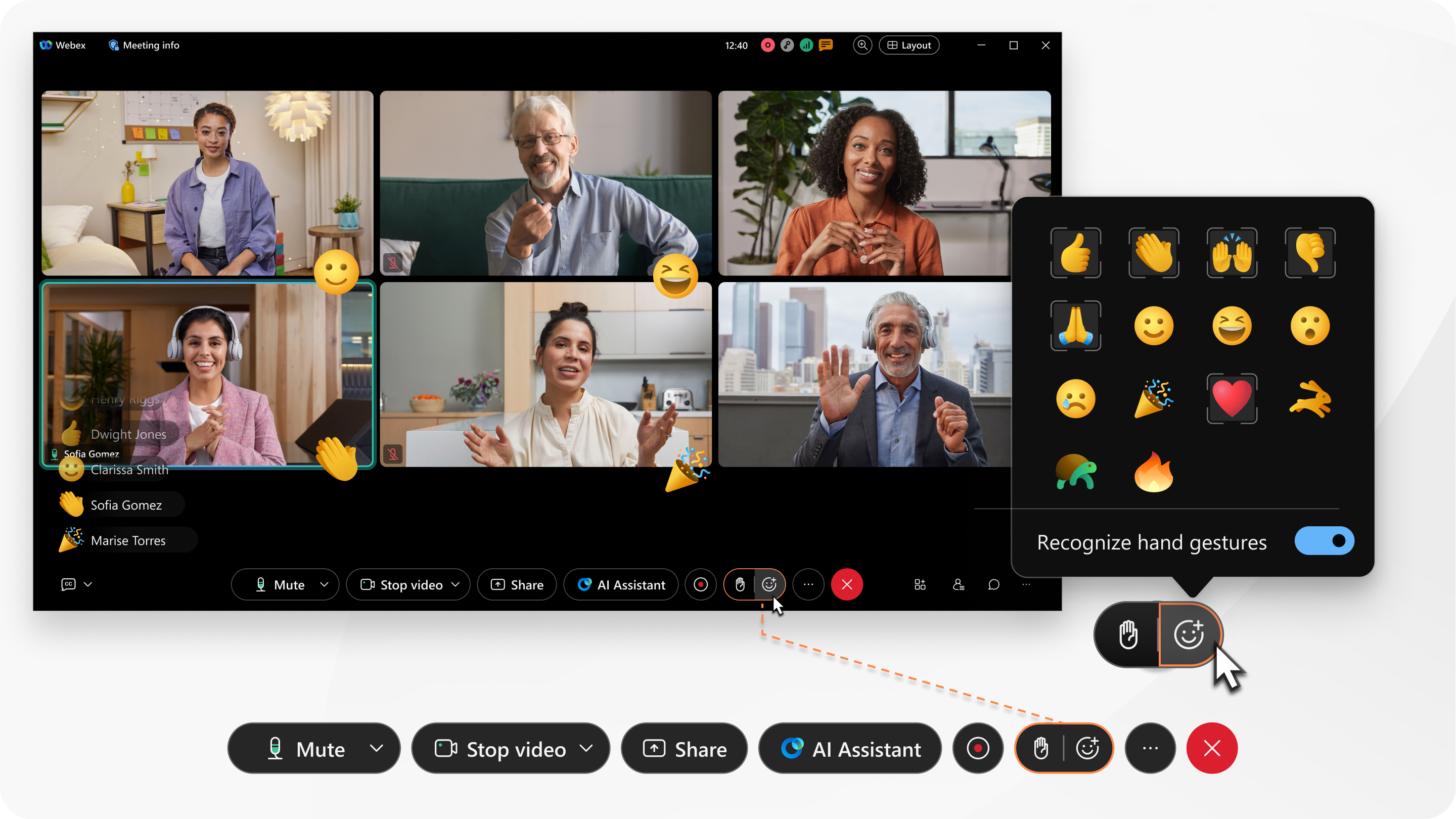
This feature is available in Webex scheduled meetings, Personal Room meetings, and enhanced meetings associated with a space.
Meeting hosts and cohosts can turn off reactions so this feature may not be available to you. Hosts and cohosts can also hide the display name that shows next to reactions in meetings on the Webex Suite meeting platform.
For gesture reactions, such as thumbs up, you can choose the skin tone you prefer.
If you want to enable gestures, make sure you're sharing your video and that your computer meets the following requirements:
-
Operating System—Windows 10 64-bit
If you're in a VDI environment, make sure you're using a supported platform for virtual backgrounds. See the VDI Release Notes for more information.
-
Processor:
-
Intel Core i3, i5, or i7 4000 series processor or higher (when less than 4 cores)
-
Intel Core i9 dual-core processor or higher
-
Intel Xeon dual-core processor or higher
-
Intel Pentium Silver: 4 cores or higher
-
Intel Processor: 4 cores or higher
-
Other Intel processors: 6 cores or higher
-
AMD Ryzen 5, 7, 9, or higher
-
Other AMD processor: 4 cores with at least 3.0 GHz; OR 4 cores or higher
-
Apple processor: 4 cores or higher
-
Non-Intel, non-AMD, or non-Apple processors: 8 cores or higher
-
-
Memory:
-
8 GB or more of RAM
-
2 GB or more of VRAM for dedicated GPUs
-
|
Click Reactions
Others see your reaction in the lower-right corner of your video or in the lower-left corner of the meeting window along with your name, depending on whether your video is within view. |


If you want to enable gestures, make sure you're sharing your video and that your computer meets the following requirements:
-
Processor:
-
Intel Core i5 6000 series dual-core processor or higher
-
Intel Core i7 5000 series dual-core processor or higher
-
Intel Core i7 quad-core processor or higher
-
Intel Core i9 dual-core processor or higher
-
Intel Xeon dual-core processor or higher
-
Intel Core m3 7000 series dual-core processor or higher
-
Other Intel processors: six cores or higher
-
Non-intel processors: eight cores or higher
-
|
Click Reactions
Others see your reaction in the lower-right corner of your video or in the lower-left corner of the meeting window along with your name, depending on whether your video is within view. |
|
Tap More Others see your reaction in the center of your video or in the lower-left corner of the meeting window along with your name, depending on whether your video is within view. |


